Introduction

ℹ️ Documentation is not fully up to date as of 2-5-2026!

TerminusNET is a complete private internet protocol system consisting of a custom server (TerminusHOST) and graphical browser. It provides a modern, beautiful interface for browsing database-driven sites on a private internet infrastructure.

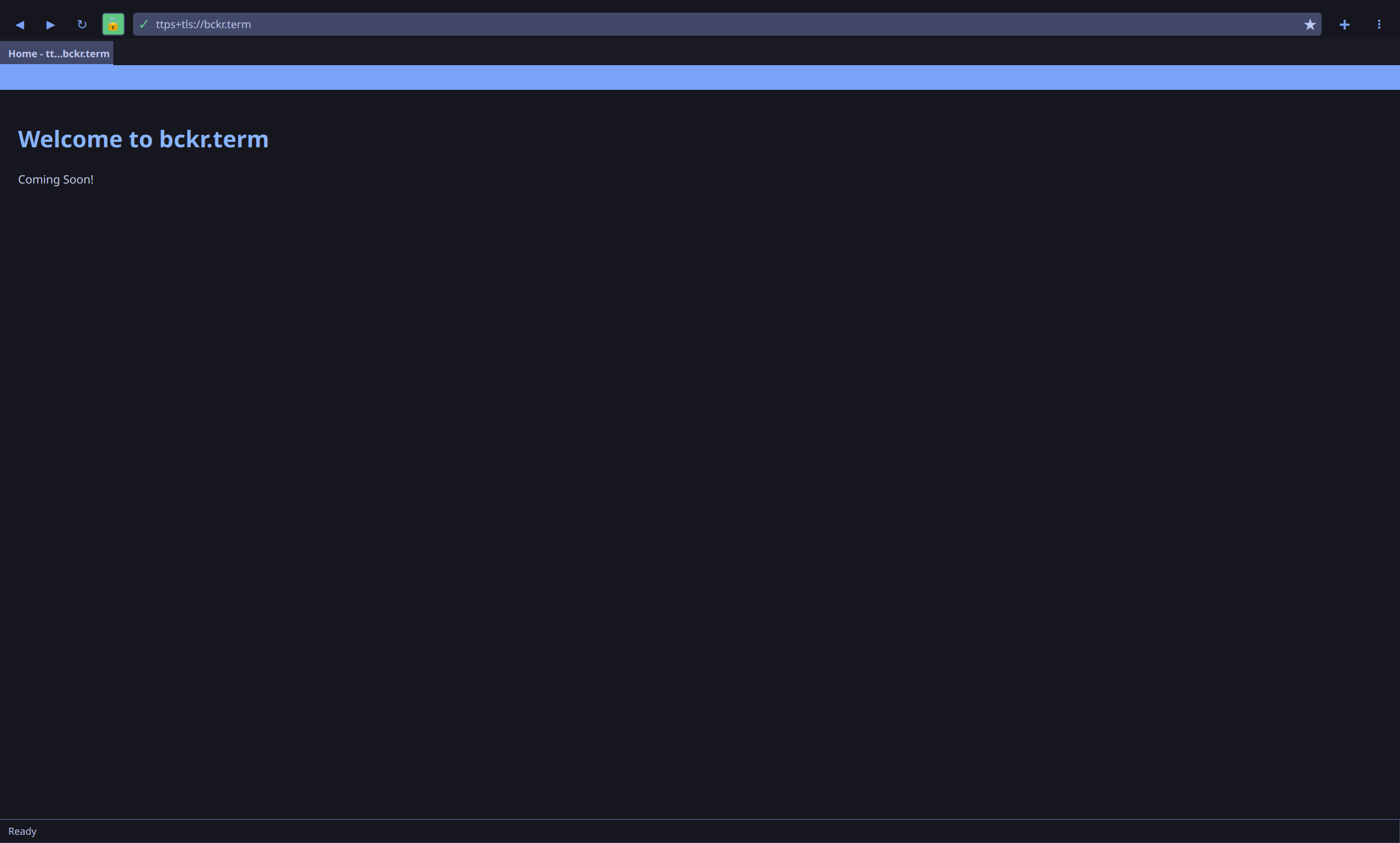
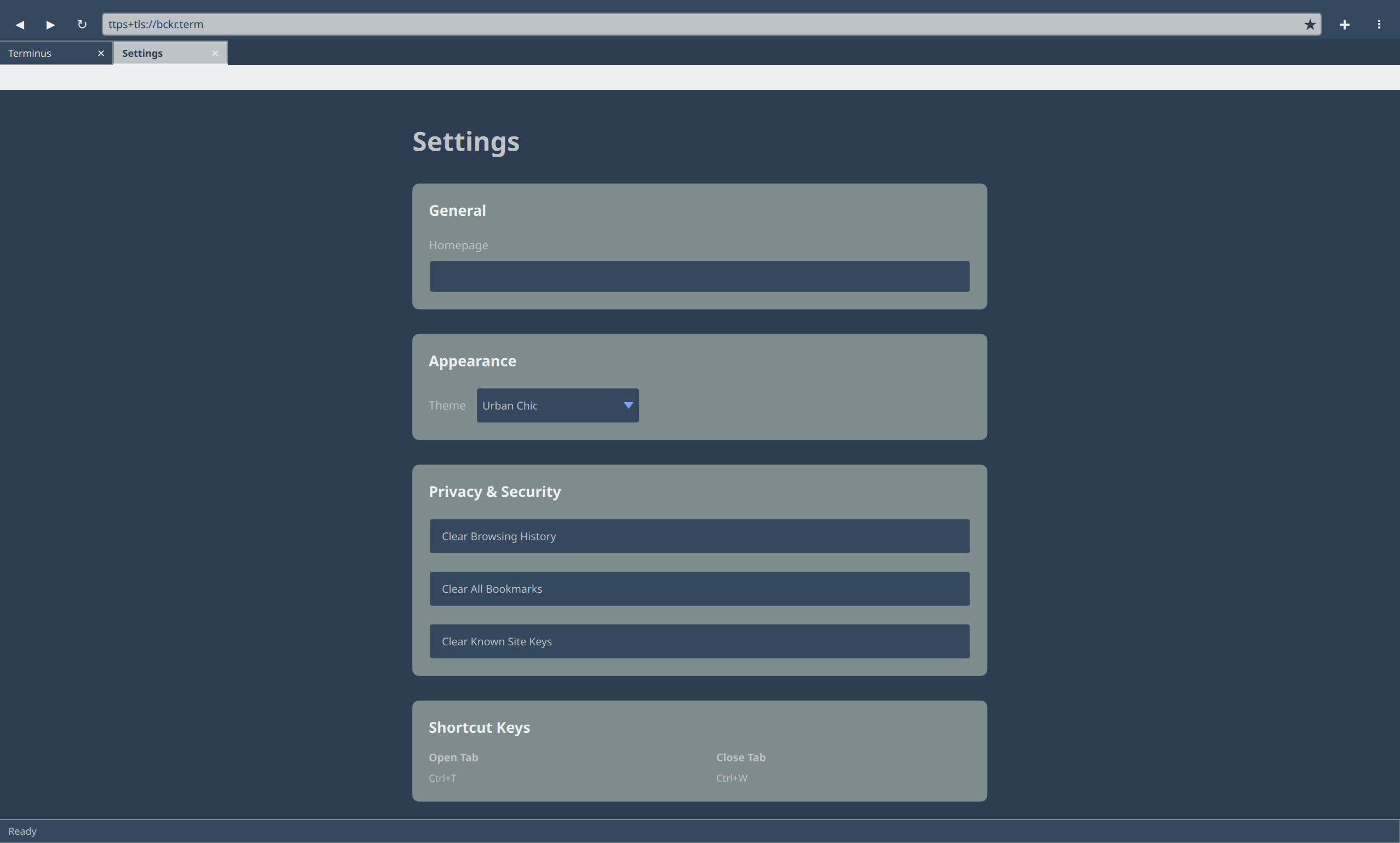
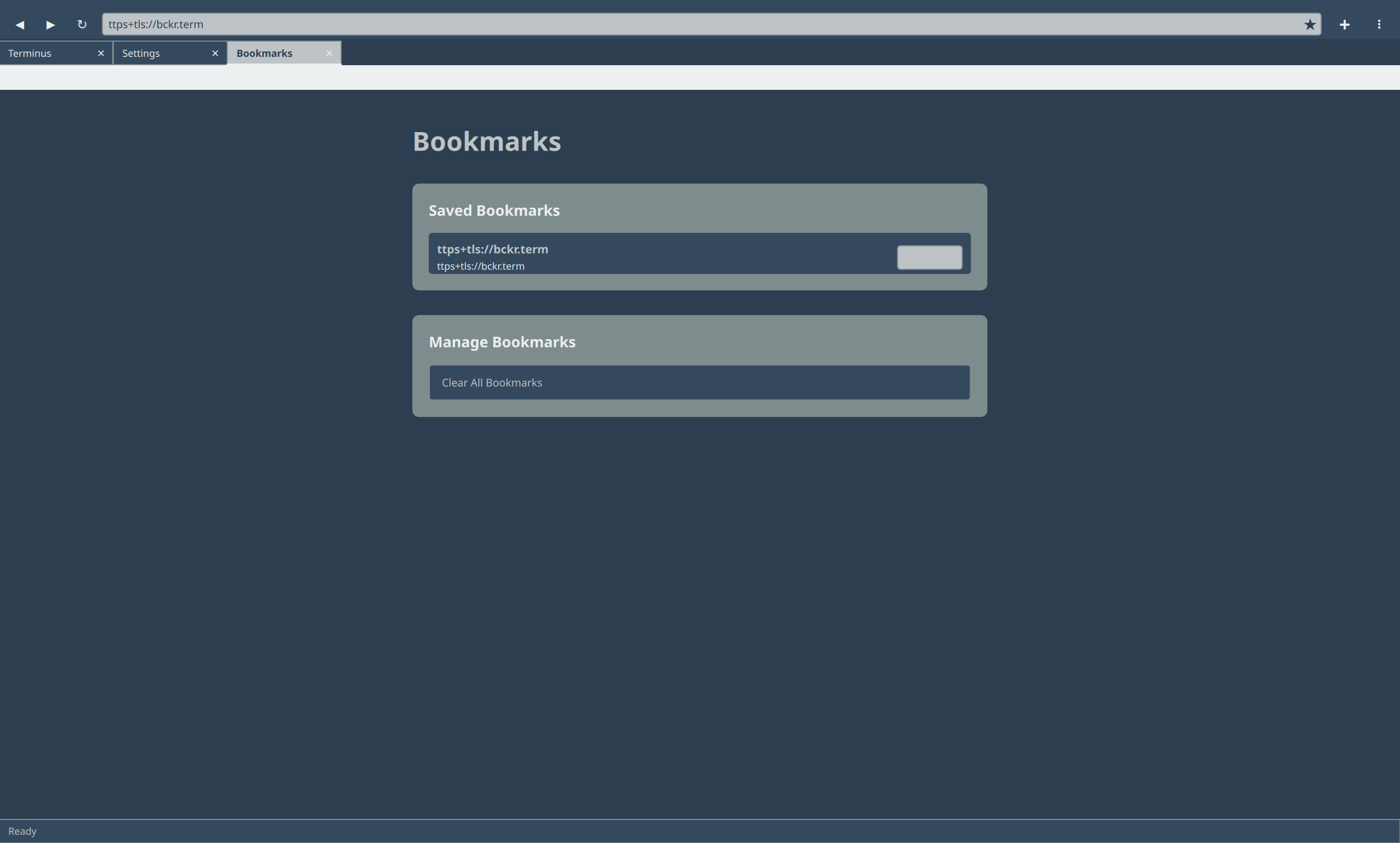
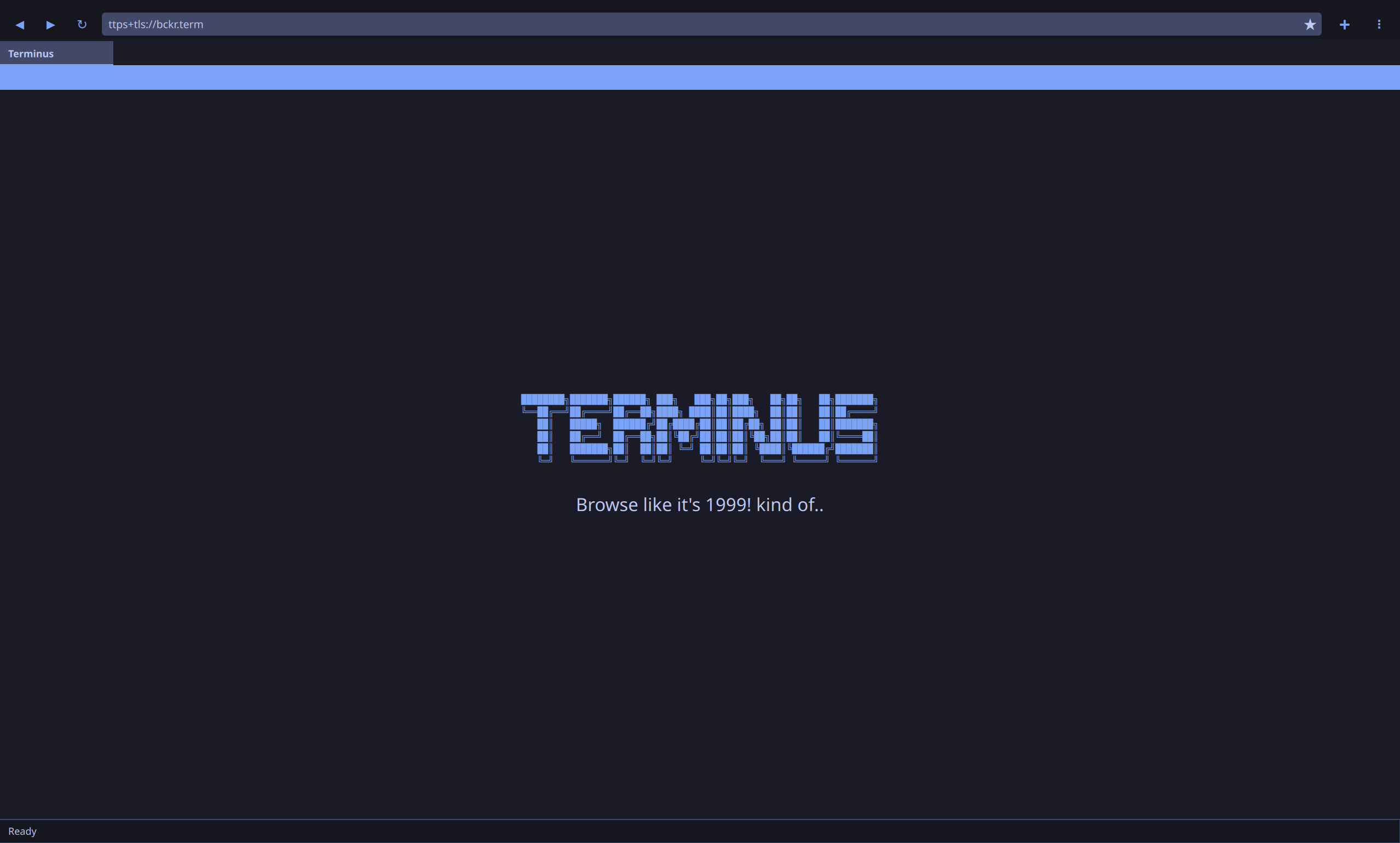
TerminusNET Main Interface TerminusNET Example Page TerminusNET Settings 1 TerminusNET Settings 2
ℹ️ What is TerminusNET?

TerminusNET is a private internet protocol where the database IS the site. Sites are completely portable SQLite databases that can be moved between servers without modification.

System Components

  • TerminusHOST - Python asyncio server that serves TNET/1.0 protocol
  • TerminusNET Browser - Qt/QML graphical browser for TNET/1.0
  • TNET/1.0 Protocol - Custom TCP-based protocol with JSON responses
  • SQLite Databases - Portable site storage

Design Philosophy

  • Simplicity - Clean, minimal interface focused on content
  • Privacy - No tracking, no external services, local-first
  • Security - Built-in TLS & TTPS with RSA key pinning
  • Portability - Sites identified by name, not DNS
  • Offline-capable - Works entirely on local networks

Quick Start

1. Create Multi-Site Configuration

cat > sites.json << 'EOF'
{
  "sites": {
    "mysite.term": {
      "database": "/path/to/mysite.db"
    }
  }
}
EOF

2. Start a Server

python server/terminushost.py --config sites.json --host 127.0.0.1 --port 8080

3. Launch the Browser

python browser/main.py
✓ Or use the launch script:
cd browser
./launch.sh

3. Navigate

Enter in the browser address bar:

  • 127.0.0.1:8080 - Connect to local server
  • 8080 - Port only (assumes localhost)
  • my-blog.term - Registered site name

Server Overview

TerminusHOST is a Python asyncio-based server that serves database-driven sites using the TNET/1.0 protocol. Each site is a self-contained SQLite database with pages, styles, and configuration.

Core Concepts

  • Database IS the Site - Everything stored in a single SQLite file
  • JSON-Based Pages - Pages defined as JSON with sections and styling
  • TNET/1.0 Protocol - Simple TCP protocol, not HTTP
  • Async Architecture - Built on Python asyncio for performance
  • Multi-Site Capable - One server instance can host multiple sites

Multi-Site Mode (Default)

TerminusNET operates in multi-site mode by default, supporting both development and production deployments with a single configuration approach.

  • Development: Use --config sites.json on localhost
  • Production: Use --config /etc/terminusnet/terminushost.conf on public server
  • Multiple sites: Add sites via admin.py tool
  • Flexible deployment: Same configuration format for all deployments

Request Flow

Client Connection (TCP or TLS)
      ↓
TLS Handshake (if TLS enabled)
      ↓
Parse Request (GET/POST/PUT)
      ↓
Extract Host Header (multi-site routing)
      ↓
Route to Database
      ↓
Query Page Data
      ↓
Merge Styles (server + site)
      ↓
Sign Response (TTPS)
      ↓
Encrypt Response (if TLS)
      ↓
Send Response

Server Features

Core Features

Multi-Site Hosting

Host multiple independent sites on a single server instance using Host header routing.

  • Each site has its own database
  • Independent TTPS keys per site
  • Automatic site discovery via Available-Sites header
  • Default server page showing available sites

Security: TTPS & TLS

Built-in TTPS (Terminus Transfer Protocol Security) with RSA key pinning for identity verification, plus optional TLS encryption for all connections.

  • TTPS: Cryptographic signing of responses with RSA-4096 signatures
  • Response signing with private keys, public key distribution in headers
  • PSS padding with SHA-256 for signature security
  • Full TLS Support: Optional TLS 1.2+ encryption for transport layer security
  • Opportunistic TLS with fallback to TCP for compatibility
  • Hot-reload of keys and certificates without restart

Form Handling

Full support for form submissions with persistent storage.

  • POST request handling
  • PUT request handling (record updates)
  • JSON form data parsing
  • Storage in form_submissions table
  • Automatic display on homepage

Style System

Flexible styling with server defaults and site-specific overrides.

  • Server default styles from server/styles/global.json
  • Site custom styles merged with defaults
  • Catppuccin Mocha theme by default
  • CSS-like style classes

Hot-Reload Support

Update configuration and keys without restarting the server.

  • Private key hot-reload based on file modification time
  • Config file hot-reload (multi-site mode)
  • Automatic cache invalidation
  • No downtime for updates

Logging

Comprehensive logging for debugging and monitoring.

  • File and console logging
  • Request logging (method, path, content-length)
  • Error tracking
  • Configurable log levels

Database Features

  • SQLite storage for portability
  • Thread-safe connections
  • Automatic timestamp tracking
  • Indexed queries for performance

Setup & Requirements

System Requirements

  • OS: Linux, macOS, Windows
  • Python: 3.8+
  • Database: SQLite 3
  • Network: Open TCP port for server

Python Dependencies

cryptography>=41.0.0  # For TTPS signatures
ℹ️ Installation
pip install cryptography

Directory Structure

server/
├── terminushost.py      # Main server file
├── schema.sql           # Database schema template
├── __init__.py
└── styles/
    └── global.json      # Default server styles

Creating a Site Database

Option 1: Use the Admin Tool

# Launch the interactive admin tool
python tools/scripts/admin.py
# Choose "1 - Create a new site" and follow the prompts

Option 2: Manual Creation

# Create database from schema
sqlite3 mysite.db < server/schema.sql

# Add pages manually
sqlite3 mysite.db "INSERT INTO pages (path, json_content) VALUES ..."

File Permissions

The server requires read/write access to database files:

# Set ownership (development)
chown $USER:$USER mysite.db

# Set ownership (production)
chown terminus:terminus mysite.db

# Verify permissions
ls -l mysite.db
⚠️ Permission Errors

If you see "Database file is not readable/writable" errors, check file ownership and permissions. The server will provide specific fix commands in the error message.

Configuration

Multi-Site Configuration

TerminusNET operates in multi-site mode by default, allowing multiple sites to be hosted on a single server instance.

Command Line

python server/terminushost.py \
    --config /etc/terminusnet/sites.json \
    --host 0.0.0.0 \
    --port 8080 \
    --log /var/log/terminusnet/server.log

Configuration File Format

Important: All site names must end with the .term suffix. Databases are stored in site-specific directories: /home/{user}/sites/{domain_name}/home.db

{
  "tls": {
    "enabled": true,
    "cert_path": "/etc/terminusnet/certs/server.crt",
    "key_path": "/etc/terminusnet/certs/server.key"
  },
  "primary_domain": "example.com",
  "custom_welcome_enabled": true,
  "custom_welcome_text": "My Server",
  "sites_directory_enabled": true,
  "default_site": "blog.term",
  "sites": {
    "portfolio.term": {
      "database": "/home/user1/sites/portfolio.term/home.db",
      "private_key_path": "/etc/terminusnet/keys/portfolio.term.key",
      "public_key": "-----BEGIN PUBLIC KEY-----\n...",
      "tls": {
        "enabled": true,
        "cert_path": "/etc/terminusnet/certs/portfolio.term.crt",
        "key_path": "/etc/terminusnet/certs/portfolio.term.key"
      }
    },
    "blog.term": {
      "database": "/home/user1/sites/blog.term/home.db",
      "private_key_path": "/etc/terminusnet/keys/blog.term.key",
      "public_key": "-----BEGIN PUBLIC KEY-----\n..."
    }
  }
}

Configuration Fields

Field Type Description
tls.enabled Boolean Enable TLS encryption for all sites (default: false)
tls.cert_path String Path to server certificate PEM file
tls.key_path String Path to server private key PEM file
primary_domain String Primary domain for welcome page access control (optional). When set, only this domain and IP addresses can access the welcome page. See Welcome Page Access Control
custom_welcome_enabled Boolean Show ASCII art of custom text (default: false)
custom_welcome_text String Text to convert to ASCII art (default: "My Server")
sites_directory_enabled Boolean Show list of available sites (default: false)
sites Object Map of site names to configurations
sites.*.database String Path to site's SQLite database: /home/{user}/sites/{domain}/home.db
sites.*.private_key_path String Path to RSA private key for TTPS signatures (optional)
sites.*.public_key String Public key PEM for TTPS verification (optional)
sites.*.tls.enabled Boolean Enable certificate pinning for this site (optional)
sites.*.tls.cert_path String Path to site's certificate for pinning verification (optional)
sites.*.tls.key_path String Path to site's private key (optional)
ℹ️ TLS vs TTPS - What's the Difference?

Global TLS (`tls.*`) - Encrypts all traffic between browser and server. Configured once at top level, applies to all sites. See TLS Setup section for complete instructions.

TTPS (`sites.*.private_key_path`) - Cryptographically signs responses per-site. Different site can have different keys. For encryption, you need TLS.

Per-Site Certificate Pinning (`sites.*.tls.*`) - Advanced feature for stricter certificate validation. Rarely needed for self-signed certificates.

Server Welcome Page Examples

When users navigate to your server's IP:port without specifying a site, the server displays a welcome page. You can customize this page using the configuration options above.

Example 1: Default (Both Disabled)

{
  "custom_welcome_enabled": false,
  "sites_directory_enabled": false,
  "sites": { ... }
}

Shows: "Welcome. The site directory is disabled. Contact the administrator."

Example 2: ASCII Art Only

{
  "custom_welcome_enabled": true,
  "custom_welcome_text": "ServerMesh",
  "sites_directory_enabled": false,
  "sites": { ... }
}

Shows: ASCII art of "ServerMesh" only (no site list)

Example 3: Site Directory Only

{
  "custom_welcome_enabled": false,
  "sites_directory_enabled": true,
  "sites": { ... }
}

Shows: "Available Sites:" followed by clickable list of all configured sites

Example 4: Both Enabled (Recommended)

{
  "custom_welcome_enabled": true,
  "custom_welcome_text": "My Awesome Server",
  "sites_directory_enabled": true,
  "sites": {
    "blog.term": { ... },
    "shop.term": { ... }
  }
}

Shows: ASCII art of "My Awesome Server" at the top, followed by the list of available sites (blog.term, shop.term) as clickable links

💡 Tip

ASCII art is generated using the art library (preferred) with pyfiglet as fallback. Install at least one: pip install art or pip install pyfiglet

Host Header Routing

The server uses the Host header to route requests to the correct site database. Site names in the Host header must match the configured site names (with .term suffix):

GET /about
Host: blog.term

# Routes to blog.term database and returns Site-Name: blog.term
ℹ️ Hot-Reload

The config file is checked on each request. Modifications are automatically reloaded without restart.

Welcome Page Access Control

The primary_domain configuration option controls who can access the server's welcome page and site directory. This prevents accidental or malicious enumeration through alternative domains that resolve to your server.

How It Works

When a request arrives without a registered site name, the server checks:

  1. Is the Host header an IP address? → Always allow welcome page (useful for administration)
  2. Is the Host header a registered `.term` site? → Route to site database
  3. Does the Host header match `primary_domain`? → Allow welcome page (if configured)
  4. None of the above? → Return 404 "Site not found"

Configuration

Add to your server configuration:

{
  "primary_domain": "example.com",
  "custom_welcome_enabled": true,
  "sites_directory_enabled": true,
  ...
}

Scenarios

Scenario 1: `primary_domain` configured (e.g., "example.com")

Browser Access Result
178.156.176.60:8080 ✓ Welcome page (IP always allowed)
example.com:8080 ✓ Welcome page (matches primary_domain)
blog.term:8080 ✓ Blog site (registered site)
random.com:8080 ✗ 404 "Site not found"

Scenario 2: `primary_domain` not configured (or absent)

Browser Access Result
178.156.176.60:8080 ✓ Welcome page (IP always allowed)
example.com:8080 ✗ 404 "Site not found"
blog.term:8080 ✓ Blog site (registered site)
random.com:8080 ✗ 404 "Site not found"

Use Cases

Development Server (Open Access)

{
  "primary_domain": "localhost",
  "custom_welcome_enabled": true,
  "sites_directory_enabled": true,
  "sites": {...}
}

Allows: IP access + localhost domain + registered sites

Production Server (Domain-Locked)

{
  "primary_domain": "example.com",
  "custom_welcome_enabled": true,
  "sites_directory_enabled": true,
  "sites": {...}
}

Allows: IP access + example.com domain + registered sites. Blocks all other domains.

Restricted Access (IP-Only)

{
  "custom_welcome_enabled": true,
  "sites_directory_enabled": true,
  "sites": {...}
}

Note: Omit `primary_domain` entirely. Allows: IP access only. Blocks all domain access to welcome page (but registered `.term` sites still work).

⚠️ Site Name Requirement

All site names in the configuration must end with the .term suffix. If a site name doesn't follow this convention, the server will fail to start with a validation error.

TTPS Security

TTPS (Terminus Transport Protocol Security) provides cryptographic verification of server identity using RSA-4096 signatures.

Key Generation

Generate RSA-4096 key pair for signing:

# Generate private key
openssl genpkey -algorithm RSA -out site-key.pem -pkeyopt rsa_keygen_bits:4096

# Extract public key
openssl rsa -pubout -in site-key.pem -out site-public.pem

# View public key (for config file)
cat site-public.pem

Configuration

Add keys to the config file:

{
  "sites": {
    "mysite.term": {
      "database": "/path/to/mysite.db",
      "private_key_path": "/etc/terminusnet/keys/mysite.term-key.pem",
      "public_key": "-----BEGIN PUBLIC KEY-----\nMIICIjANBg...\n-----END PUBLIC KEY-----"
    }
  }
}

Signature Process

  1. Server generates JSON response body
  2. Response body is signed with private key using RSA-PSS
  3. Signature encoded as Base64
  4. Headers added:
    • Site-Signature - Base64 signature
    • Site-Public-Key - Public key PEM
  5. Full response sent to client

Response Example

TNET/1.0 200 OK
Site-Name: mysite
Content-Type: application/json
Site-Signature: iQEcBAABCgAGBQJhPqE...
Site-Public-Key: -----BEGIN PUBLIC KEY----- MIICIjANBg...
Content-Length: 1234

{"page": {...}, "styles": {...}}

Security Properties

  • Algorithm: RSA-4096 with PSS padding
  • Hash: SHA-256
  • Padding: PSS with MGF1, max salt length
  • Encoding: Base64 for signatures
✓ Key Hot-Reload

Private keys are cached with modification time tracking. When a key file is updated, it's automatically reloaded on the next request without server restart.

Key Management Best Practices

  • Store private keys in /etc/terminusnet/keys/ with 600 permissions
  • Use separate keys for each site
  • Backup keys securely
  • Never commit keys to version control
  • Rotate keys periodically
  • Use the admin.py tool for automated site and key management

Administration Tool

TerminusNET includes a comprehensive administration tool at tools/scripts/admin.py that handles user management, site creation, TTPS key generation, TLS certificate management, and multi-site deployments.

Main Features

  • Site Management - Create/delete sites with .term naming
  • TTPS Keys - Generate RSA-4096 keypairs for response signing
  • Site Certificates - TLS certificates for per-site pinning (optional)
  • Server Certificate - Manage server-level TLS encryption certificates
  • Service Management - Start/stop/restart server, view logs
  • User Management - Create users, suspend/unsuspend accounts
  • Settings - Configure default sites, welcome pages

Interactive Mode (Recommended)

Launch the interactive administration menu:

python tools/scripts/admin.py

The interactive menu provides:

  1. Site Management (create, delete, list)
  2. Key Management (for TTPS signatures)
  3. Terminus Settings (server certificate, service control, logs)

Site Creation Flow

When creating a new site, you'll be guided through these steps:

Step 1: Select the user who will own this site
Enter username: [your_username]

Step 2: Enter the domain name for this site
Enter domain name: [my-site.term]
Format: name.term (e.g., blog.term, cats.term, my-site.term)

Step 3: Generate TTPS signature keys?
  1 - Yes, generate keys
  2 - No, add later

Step 4: Enable certificate pinning (verify same cert on revisits)?
  1 - Yes, store certificate for pinning
  2 - No, skip pinning

Database Structure

Each site gets its own isolated directory:

/home/{username}/sites/{domain_name}/
├── home.db           # Site database with pages, styles, forms
└── ...               # (Future: additional site files)

Example:

/home/testuser/sites/blog.term/home.db
/home/testuser/sites/shop.term/home.db

Site Creation Examples

Minimal Site (No Keys or Pinning)

✓ Site created successfully: blog.term
  Database: /home/testuser/sites/blog.term/home.db
  Owner: testuser
  TTPS: Not configured
  TLS: Not configured

Full Setup (Keys + Pinning)

✓ Site created successfully: blog.term
  Database: /home/testuser/sites/blog.term/home.db
  Owner: testuser
  TTPS: Keys generated
  TLS: Certificate pinning enabled

Listing Sites

View all configured sites and their status:

Configured Sites
============================================================

blog.term                                                [DEFAULT]
  Database: /home/testuser/sites/blog.term/home.db
  TTPS: Configured
  TLS: Configured

shop.term
  Database: /home/testuser/sites/shop.term/home.db
  TTPS: Not configured
  TLS: Not configured

Deleting Sites

Remove a site from the system:

  1. Choose the site to delete
  2. Confirm removal from configuration
  3. Optionally delete the database file
  4. Optionally delete associated TTPS keys

Note: Deleting a site will also remove its site-specific directory if it's empty.

Supporting Scripts

The admin tool uses two helper scripts automatically:

certs.py

Manages TLS certificates for certificate pinning. Automatically called during site creation if you choose certificate pinning.

python tools/scripts/certs.py generate {domain_name}

keys.py

Manages TTPS cryptographic keys. Automatically called during site creation if you choose to generate keys.

python tools/scripts/keys.py generate {domain_name}

Configuration Management

The admin tool automatically updates the server configuration file (/etc/terminusnet/terminushost.conf) with:

  • Site name and domain
  • Database path (site-specific)
  • TTPS key paths (if keys generated)
  • TLS certificate paths (if pinning enabled)
  • Public key PEM (if TTPS enabled)
ℹ️ Location on Production Server

On the production server, the tool is located at /usr/local/bin/admin.py. Run it with Python 3.8+.

Server Certificate Management

The admin tool includes a dedicated section for managing the server's TLS encryption certificate under Terminus Settings → Server Certificate Management.

Features

  • View current server certificate status
  • Generate new server certificates (self-signed)
  • Automatically store certificates in /etc/terminusnet/certs/server/
  • Update server configuration with new certificate paths
  • See certificate expiration dates

Using Server Certificate Management

# Launch admin tool
python tools/scripts/admin.py

# From main menu: Choose "4. Terminus Settings"
# From settings menu: Choose "3. Server Certificate Management"

# Options:
#   1. View Certificate Status    - See current TLS status
#   2. Generate New Certificate   - Create a new server certificate
#   3. Return to Settings

How It Works

  1. Admin selects "Generate New Server Certificate"
  2. Tool prompts for certificate name (default: server.term)
  3. Tool prompts for validity period (default: 365 days)
  4. Self-signed certificate is generated in /etc/terminusnet/certs/server/
  5. Admin confirms whether to update server configuration
  6. Configuration is updated with new certificate paths
  7. Server automatically reloads certificate on next connection
✓ Server vs Site Certificates

Server certificates (in server/ dir) encrypt ALL connections. Site certificates (in sites/ dir) are optional per-site pinning. Use admin.py for server certificates, it handles everything for you.

Typical Workflows

Create a New Site

python tools/scripts/admin.py
# Choose "1 - Create a new site"
# Follow the 4-step interactive flow
# Done! Site is created with optional keys and certificates

List All Sites

python tools/scripts/admin.py
# Choose "2 - List all sites"
# View all sites with their status and database paths

Delete a Site

python tools/scripts/admin.py
# Choose "3 - Delete a site"
# Select the site to remove
# Confirm deletion and choose what to clean up

Best Practices

  • Use interactive mode - Guided prompts prevent configuration mistakes
  • Enable TTPS keys - Recommended for server identity verification
  • Enable TLS pinning - Optional but recommended for MITM protection
  • Domain naming - Use format: name.term (e.g., blog.term, my-shop.term)
  • Multi-domain per user - One user account can host multiple domains
  • Backup databases - Before deleting sites, ensure you have backups if needed

Site Certificate Management

Manage TLS certificates for individual sites through the admin tool's Keys & Certificates menu.

Site Certificate Features

  • Generate certificates for individual sites
  • Each site has its own folder: /etc/terminusnet/certs/sites/{site-name}/
  • View certificate status and expiration dates
  • Delete certificates while keeping the site directory for future use
  • Automatically update site configuration when certificates are generated

Using Site Certificate Management

# Launch admin tool
python tools/scripts/admin.py

# From main menu: Choose "2. Key Management"
# Options for site certificates:
#   D. List Site Certificates      - View all site certificates
#   E. Generate Site Certificate   - Create certificate for a site
#   F. Delete Site Certificate     - Remove certificate from site

# When deleting certificate:
#   - Only .crt and .key files are removed
#   - Site directory is kept for future use
#   - TLS pinning is disabled in config

Certificate Lifecycle

  1. Creating a Site: Option to generate certificate during site creation
  2. Later Addition: Use admin.py → Keys & Certificates → Generate to add later
  3. Viewing: Use List Site Certificates to see status and expiry
  4. Deletion: Use Delete to remove cert (keeps site directory)
  5. Site Removal: When deleting the site itself, entire cert directory is removed
ℹ️ Certificate vs Site Deletion

Delete Certificate: Removes only .crt and .key files. Directory remains. Use this when you need to regenerate or update a certificate.

Delete Site: Removes entire `/certs/sites/{site-name}/` folder. Use this when removing a site completely.

TLS Setup (Encryption)

TLS (Transport Layer Security) encrypts all traffic between browser and server. This is optional and disabled by default for backward compatibility.

How It Works

When TLS is enabled:

  1. Server presents a certificate during connection handshake
  2. Browser validates and accepts the certificate
  3. All subsequent traffic is encrypted
  4. Browser automatically detects TLS capability and uses it
ℹ️ One Certificate for All Sites

TLS is configured once at the server level. A single certificate encrypts connections for all hosted sites. This is different from TTPS (response signatures), which is per-site.

Certificate Directory Structure

Certificates are organized into separate directories for clarity:

/etc/terminusnet/certs/
├── server/                           ← Server encryption certificates
│   ├── server.term.crt
│   └── server.term.key
└── sites/                            ← Site-specific pinning certificates
    ├── blog.term/
    │   ├── blog.term.crt
    │   └── blog.term.key
    ├── cats.term/
    │   ├── cats.term.crt
    │   └── cats.term.key
    └── dogs.term/
        ├── dogs.term.crt
        └── dogs.term.key
ℹ️ Separate Directories

Server certificates (in `server/` dir) encrypt all connections. Site certificates (in `sites/{site-name}/` subdirs) are optional per-site pinning certificates. Each site has its own folder for organization.

Step 1: Generate Server Certificate

Use the certificate management script with the new generate-server command:

python tools/scripts/certs.py generate-server server.term \
    --cert-dir /etc/terminusnet/certs \
    --config /etc/terminusnet/terminushost.conf

This creates:

  • /etc/terminusnet/certs/server/server.term.crt - Public certificate
  • /etc/terminusnet/certs/server/server.term.key - Private key (mode 600)
✓ Naming Convention

Server certificates should use a neutral name like server.term, terminushost.term, or default.term to avoid confusion with site names.

Step 2: Update Configuration

Add TLS settings to your server configuration file, using the new server/ directory path:

{
  "tls": {
    "enabled": true,
    "cert_path": "/etc/terminusnet/certs/server/server.term.crt",
    "key_path": "/etc/terminusnet/certs/server/server.term.key"
  },
  "sites": {
    "blog.term": {
      "database": "/home/user/sites/blog.db"
    }
  }
}
⚠️ Certificate Paths

Use the paths from Step 1. For production, copy certificates to a secure location like /etc/terminusnet/certs/ with appropriate permissions.

Step 3: Start Server

Start the server with the updated configuration:

python server/terminushost.py \
    --config sites.json \
    --host 127.0.0.1 \
    --port 8080

Browser Connection

When you navigate in the browser:

Step What Happens
1. Browser connects Attempts TLS connection to server
2. Server presents certificate Browser receives and validates certificate
3. Certificate accepted TLS connection established (self-signed certs are accepted in permissive mode)
4. Traffic encrypted All requests/responses encrypted with TLS
5. Future visits TLS capability cached per site for automatic use

Address Bar Indicators

The browser shows which security protocols are active:

Indicator Meaning
tls://127.0.0.1:8080 TLS encryption enabled (transport encrypted)
ttps+tls://blog.term Both TLS (encrypted transport) + TTPS (signed responses)
127.0.0.1:8080 No encryption (plaintext TCP)

Certificate Management

Useful certificate operations:

# Generate server certificate (new method)
python tools/scripts/certs.py generate-server server.term \
  --cert-dir /etc/terminusnet/certs

# List ALL certificates (server + sites)
python tools/scripts/certs.py list

# Generate per-site certificates
python tools/scripts/certs.py generate blog.term
python tools/scripts/certs.py generate-all

# Renew per-site certificate (before expiry)
python tools/scripts/certs.py renew blog.term --days 365
✓ Hot-Reload

If you replace the certificate file, the server automatically detects the change and reloads it on the next connection. No restart needed.

Local Development Example

# 1. Create config
cat > sites.json << 'EOF'
{
  "tls": {
    "enabled": true,
    "cert_path": "./certs/server/server.term.crt",
    "key_path": "./certs/server/server.term.key"
  },
  "sites": {
    "test.term": {
      "database": "test.db"
    }
  }
}
EOF

# 2. Generate server certificate
python tools/scripts/certs.py generate-server server.term \
  --cert-dir ./certs \
  --config sites.json

# 3. Start server
python server/terminushost.py --config sites.json --host 127.0.0.1 --port 8080

# 4. Open browser and navigate to: 127.0.0.1:8080

Troubleshooting TLS

Certificate Not Found Error

Problem: Server logs show "TLS cert/key not found - disabled"

  • Verify certificate files exist: ls -l certs/server.term.crt certs/server.term.key
  • Check paths in config match actual file locations
  • Regenerate certificate if files are missing

Connection Fails with TLS

Problem: Browser falls back to plaintext or shows connection error

  • Check server logs for SSL errors
  • Verify certificate is valid: python tools/scripts/certs.py show server.term
  • Ensure `tls.enabled` is set to `true` in config
  • Try disabling TLS to verify server works otherwise

Certificate Expired

Problem: Certificate is older than 365 days

  • Renew certificate: python tools/scripts/certs.py renew server.term --days 365
  • Server auto-reloads on next connection

Running the Server

Multi-Site Mode

TerminusNET runs in multi-site mode by default, allowing multiple sites to be hosted on a single server instance:

Development Mode

# Start server on localhost with multi-site configuration
python server/terminushost.py \
    --config sites.json \
    --host 127.0.0.1 \
    --port 8080

Production Deployment

Using systemd (Linux)

Create service file at /etc/systemd/system/terminusnet.service:

[Unit]
Description=TerminusNET Server
After=network.target

[Service]
Type=simple
User=terminus
Group=terminus
WorkingDirectory=/opt/terminusnet
ExecStart=/usr/bin/python3 server/terminushost.py \
    --config /etc/terminusnet/sites.json \
    --host 0.0.0.0 \
    --port 8080 \
    --log /var/log/terminusnet/server.log
Restart=always
RestartSec=10

[Install]
WantedBy=multi-user.target

Service Management

# Enable service
sudo systemctl enable terminusnet

# Start service
sudo systemctl start terminusnet

# Check status
sudo systemctl status terminusnet

# View logs
sudo journalctl -u terminusnet -f

# Restart service
sudo systemctl restart terminusnet

Firewall Configuration

# Open port (firewalld)
sudo firewall-cmd --permanent --add-port=8080/tcp
sudo firewall-cmd --reload

# Open port (ufw)
sudo ufw allow 8080/tcp

Monitoring

Log Files

# View logs
tail -f /var/log/terminusnet/server.log

# Search for errors
grep ERROR /var/log/terminusnet/server.log

Request Logging

Each request is logged with format:

2026-01-17 14:30:45 - TerminusHOST - INFO - GET / (Content-Length: 0)
2026-01-17 14:30:45 - TerminusHOST - INFO - Routed to site: portfolio.term

Updating Sites

Update Database

# Modify database
sqlite3 /var/terminusnet/sites/mysite.db

# Changes are immediately available (no restart needed)

Update Configuration

# Edit config file
nano /etc/terminusnet/sites.json

# Changes are automatically detected on next request

Update Keys

# Replace key file
cp new-key.pem /etc/terminusnet/keys/site-key.pem

# Key is automatically reloaded on next request
✓ Zero-Downtime Updates

Database modifications, config changes, and key rotations don't require server restart. The server hot-reloads automatically.

Troubleshooting

Server Won't Start

  • Check database file exists and is readable
  • Verify port is not already in use: lsof -i :8080
  • Check config file syntax (multi-site mode)
  • Review logs for specific error messages

Database Errors

  • Verify file permissions: ls -l database.db
  • Check database integrity: sqlite3 database.db "PRAGMA integrity_check;"
  • Ensure schema is correct: sqlite3 database.db ".schema"

Connection Issues

  • Verify server is listening: netstat -tlnp | grep 8080
  • Check firewall rules
  • Test connectivity: telnet server-ip 8080

Browser Overview

TerminusNET Browser is a Qt/QML-based graphical browser designed specifically for the TNET/1.0 protocol. It provides a modern, beautiful interface for browsing database-driven sites.

Key Features

  • Multi-tab browsing
  • Back/forward navigation with history
  • Built-in TTPS security with RSA key pinning and visual indicators
  • Full TLS support for encrypted connections
  • Bookmark management
  • Multiple themes (Catppuccin Mocha, Tokyo Night, Urban Chic)
  • Site registry with first-contact discovery
  • Form support with POST submissions

Requirements

  • Python 3.8+
  • Qt 6.x
  • PySide6
  • qasync (for asyncio integration)
  • cryptography (for TTPS)

Browser Core Features

Address Bar

The address bar supports multiple input formats:

Format Example Description
IP:Port 192.168.1.100:8080 Direct connection to server
Domain:Port example.com:8080 Connection via domain name and port
Port only 8080 Localhost on specified port
Site name (.term) my-blog.term Registered site name (must end with .term suffix)
Site + Path (.term) my-blog.term/about Navigate to specific page on registered site

Site Registry

The browser maintains a local registry of known sites at ~/.terminusnet/registry.json. Sites are automatically registered on first contact.

ℹ️ Site Naming Convention

All registered site names must follow the .term naming convention. For example: blog.term, shop.term, my-site.term. This provides a clear distinction between site names and direct IP:port or domain:port addresses.

Registry Features

  • Automatic site discovery from server responses (with .term naming enforced)
  • Public key pinning for TTPS security
  • Site name to IP:port or domain:port mapping
  • Multi-site server support

Discovering Available Sites

To see all sites hosted on a TerminusNET server, simply enter the server's IP address and port in the address bar:

Example: 178.156.176.60:8080

When you navigate to a server's IP:port without specifying a site name, the server will display a customizable welcome page. Depending on the server configuration, this may include ASCII art branding and/or a list of available sites.

How it works:

  • The server generates a dynamic welcome page based on configuration
  • If the site directory is enabled, each site appears as a clickable link
  • The browser automatically discovers and registers sites from the list (with .term suffix)
  • Once registered, you can navigate to sites by name (e.g., my-blog.term) instead of IP:port

Note: The welcome page is controlled by custom_welcome_enabled and sites_directory_enabled configuration options on the server. See the Server Configuration section for examples.

Page Rendering

The browser renders JSON-based pages with support for:

  • Headings (H1, H2, H3)
  • Paragraphs with custom styling
  • Links (internal and cross-site)
  • Forms (text input, textarea, submit)
  • Multi-column layouts (containers)
  • Custom style classes

Browser Security (TTPS & TLS)

Defense-in-Depth Security

TerminusNET provides two layers of security for comprehensive protection against network attacks:

  • TLS (Transport Layer Security) - Encrypts all network traffic
  • TTPS (Terminus Transport Protocol Security) - Cryptographically signs responses

Protocol Indicators

The address bar displays which security protocols are active for the current page:

Indicator Protocols Meaning
ttps+tls:// Both TTPS & TLS Maximum security: Encrypted transport + signed responses
ttps:// TTPS only Response signatures only, plaintext transport
tls:// TLS only Encrypted transport, unsigned responses
Plain address None No encryption or signatures

TLS (Transport Encryption)

Purpose: Protects against eavesdropping and network monitoring by encrypting all traffic between browser and server.

  • Protocol Version: TLS 1.2+ (enforced)
  • Connection: Browser attempts TLS opportunistically on first visit
  • Fallback: If TLS fails, automatically falls back to plaintext TCP
  • Certificate Pinning: Optional per-site certificate verification for MITM detection
  • Server-Wide: Enabled globally in server configuration, applies to all sites
ℹ️ Opportunistic TLS

On first contact, the browser attempts a TLS connection. If successful, TLS is cached for that site and used on future visits. If TLS fails, the browser falls back to plaintext TCP. No manual configuration needed.

TTPS Security (Response Signatures)

Purpose: Cryptographically verifies the server's identity and prevents response tampering through RSA-4096 digital signatures.

Security Indicators

Indicator Status Meaning
🔒 Green Secure Valid signature, trusted key
∅ Yellow Unsigned No signature provided by server
⚠️ Orange Key Mismatch Site's key has changed (potential attack)
❌ Red Invalid Signature verification failed

Key Pinning

On first contact with a TTPS-enabled site:

  1. Server sends public key in Site-Public-Key header
  2. Browser verifies response signature
  3. If valid, browser pins the public key to site name
  4. Future visits verify against pinned key
⚠️ Key Mismatch Warning

If a site's public key changes, the browser displays a warning page. Verify the new key through a trusted channel before accepting.

Threat Protection Summary

Threat Protection Layer
Network eavesdropping Traffic encrypted TLS
Response tampering Cryptographic signatures TTPS
MITM with different certificate Certificate pinning (optional) TLS
Server impersonation Key pinning + signature verification TTPS

Bookmarks

Managing Bookmarks

Access bookmarks via the star (★) button in the address bar.

Save a Bookmark

  1. Navigate to the page you want to bookmark
  2. Click the star button
  3. Select "➕ Save Current Page"
  4. Enter a name for the bookmark
  5. Click OK

Storage

Bookmarks are stored in SQLite database at ~/.terminusnet/settings.db

Settings

Access the Settings page via the menu (⋮) button → Settings, or via Ctrl+,. Settings open in a dedicated tab.

General

  • Homepage - Set a default address to load when opening a new tab

Appearance

  • Theme - Choose between Catppuccin Mocha, Tokyo Night, and Urban Chic. See the Themes section for details.

Privacy & Security

  • Clear Browsing History - Removes all navigation history from all tabs
  • Clear All Bookmarks - Removes all saved bookmarks
  • Clear Known Site Keys - Resets all pinned TTPS public keys. Sites will re-pin keys on next visit.

Tabs

Tab Management

  • New Tab - Click the (+) button
  • Switch Tab - Click on tab label
  • Close Tab - Click (×) on tab (requires 2+ tabs)

Tab Features

  • Each tab has independent navigation history
  • Each tab has independent page state
  • Tab labels show site name or "Terminus"
  • Active tab highlighted with blue underline
  • Cannot close the last remaining tab
  • Maximum of 12 tabs open simultaneously
  • Right-click on tab bar to access "Close All Tabs"

Keyboard Shortcuts

Shortcut Action
Ctrl+R / F5 Reload current page
Alt+Left Navigate back
Alt+Right Navigate forward
Ctrl+L Focus and select address bar
Ctrl+T Open new tab
Ctrl+W Close current tab
Ctrl+D Bookmark current page

Themes

Available Themes

Theme Type Description
Catppuccin Mocha Dark Warm, pastel dark theme (default)
Tokyo Night Dark Cool, vibrant dark theme
Urban Chic Dark Professional slate-blue dark theme

Changing Themes

  1. Open menu (⋮) button
  2. Select "Settings"
  3. Under "Appearance", select desired theme
  4. Theme applies immediately

Architecture

System Components

Component Technology Purpose
Server Python asyncio TNET/1.0 protocol server with TLS/TCP support
Browser UI Qt 6 / QML Graphical interface
Backend PySide6 Business logic
Network asyncio TCP/TLS TNET/1.0 client with opportunistic TLS
Storage SQLite Sites, settings, bookmarks, TLS registry
Security RSA-4096 + TLS 1.2+ TTPS signatures + Transport encryption

Request/Response Flow (with TLS)

Browser Address Bar
        ↓
BrowserBackend.navigate()
        ↓
TerminusClient.get()
        ↓
Attempt TLS Connection (opportunistic)
        ↓
If TLS fails, fallback to TCP
        ↓
TerminusHOST.handle_client()
        ↓
Route to Database (multi-site)
        ↓
Query Page + Merge Styles
        ↓
Sign Response (TTPS)
        ↓
TNET/1.0 Response (encrypted if TLS used)
        ↓
Verify Signature + Pin Key (TTPS)
        ↓
Verify Certificate (TLS - if pinning enabled)
        ↓
Cache TLS status for future visits
        ↓
PageView Rendering (QML)

Multi-Site Support

Multiple sites can be hosted on the same server with isolated databases:

  • Each site has its own database at /home/{user}/sites/{domain_name}/home.db
  • Sites are identified by domain name in the global configuration
  • Server routes requests to the appropriate site database based on Host header
  • Each site can have independent TTPS keys and optional TLS certificate pinning

TNET/1.0 Protocol

Protocol Specification

TNET/1.0 is a text-based protocol with JSON responses, optionally secured with TLS encryption.

Transport Layer

  • Default: TCP on configured port (default 8080)
  • With TLS: TCP over TLS with TLS 1.2+ minimum version
  • Opportunistic TLS: Browser attempts TLS first, falls back to TCP if TLS fails
  • Certificate Pinning: Optional per-site certificate verification via tls_enabled configuration

Request Format

METHOD /path
Header1: value1
Header2: value2

[body for POST]

Response Format

TNET/1.0 STATUS_CODE Message
Header1: value1
Header2: value2
Content-Length: 1234

{"page": {...}, "styles": {...}}

Request Methods

Method Purpose Body
GET Retrieve page None
POST Submit form JSON
PUT Update record JSON

Status Codes

Code Message Meaning
200 OK Success
400 Bad Request Invalid request format
403 Forbidden Host header missing or access denied
404 Not Found Page doesn't exist
405 Method Not Allowed Unsupported method
500 Server Error Internal server error
503 Service Unavailable Cannot connect to server

Standard Headers

Header Direction Purpose
Host Request Site name for multi-site routing
Content-Length Both Body size in bytes
Content-Type Response application/json
Site-Name Response Site identifier
Available-Sites Response Comma-separated list of sites
Site-Signature Response Base64 RSA signature (TTPS)
Site-Public-Key Response Public key PEM (TTPS)

Example Exchange

Request

GET /about
Host: portfolio.term

Response

TNET/1.0 200 OK
Site-Name: portfolio.term
Content-Type: application/json
Site-Signature: iQEcBAABCgAGBQJhPqE...
Site-Public-Key: -----BEGIN PUBLIC KEY----- MIICIjANBg...
Content-Length: 456

{"page": {"title": "About", "sections": [...]}, "styles": {...}}

Database Schema

Schema Overview

Each site is a self-contained SQLite database with the following tables:

pages

Stores page content as JSON.

Column Type Description
id INTEGER PRIMARY KEY Auto-increment ID
path TEXT UNIQUE NOT NULL Page path (e.g., "/", "/about")
title TEXT Page title
json_content TEXT NOT NULL Page JSON data
created_at TIMESTAMP Creation timestamp
updated_at TIMESTAMP Last update timestamp

styles

Site-wide custom styles.

Column Type Description
id INTEGER PRIMARY KEY Auto-increment ID
name TEXT UNIQUE NOT NULL Style class name
style_json TEXT NOT NULL Style properties JSON
created_at TIMESTAMP Creation timestamp

config

Site configuration key-value pairs. Most important is the site_name which must match the site name in the server configuration.

Column Type Description
key TEXT PRIMARY KEY Config key
value TEXT NOT NULL Config value

Config Keys

  • site_name - The site identifier (must end with .term suffix, e.g., "blog.term")
  • version - Site version or schema version
ℹ️ site_name Convention

The site_name in the config table must match the site name configured in the server's terminushost.conf (or the name in multi-site config). Both must end with the .term suffix for proper routing and discovery.

form_submissions

Stores submitted form data.

Column Type Description
id INTEGER PRIMARY KEY Auto-increment ID
path TEXT NOT NULL Submission path
data TEXT NOT NULL Form data JSON
created_at TEXT NOT NULL Submission timestamp

Page JSON Format

Important: The database stores page data WITHOUT an outer "page" wrapper. The server adds this wrapper when responding to requests.

Database Storage Format

This is what you store in the json_content column:

{
  "title": "Page Title",
  "sections": [
    {
      "type": "heading",
      "content": "Welcome",
      "styleClass": "h1"
    },
    {
      "type": "paragraph",
      "content": "This is a paragraph.",
      "styleClass": "body-text"
    },
    {
      "type": "link",
      "content": "Click here",
      "target": "/other-page",
      "styleClass": "nav-link"
    }
  ]
}

Server Response Format

When the server responds to a client request, it wraps the page data and adds styles:

{
  "page": {
    "title": "Page Title",
    "sections": [...]
  },
  "styles": {
    "h1": {"color": "#89b4fa", "fontSize": 24},
    "body-text": {"color": "#cdd6f4", "fontSize": 14}
  }
}

Creating a Site Database - Complete Example

Here's a complete Python script to create a working TerminusNET site database:

#!/usr/bin/env python3
import sqlite3
import json
from datetime import datetime
from pathlib import Path

# Create database
db = sqlite3.connect("mysite.db")

# Load and execute schema
schema_path = Path("server/schema.sql")
schema = schema_path.read_text()
db.executescript(schema)

# Create page data (NO outer "page" wrapper!)
page_data = {
    "title": "Hello World",
    "sections": [
        {
            "type": "heading",
            "content": "Hello World",
            "styleClass": "page-heading"
        },
        {
            "type": "paragraph",
            "content": "Welcome to my TerminusNET site!",
            "styleClass": "body-text"
        },
        {
            "type": "link",
            "content": "About Me",
            "target": "/about",
            "styleClass": "nav-link"
        }
    ]
}

# Insert page into database
db.execute(
    "INSERT INTO pages (path, title, json_content, created_at) VALUES (?, ?, ?, ?)",
    ("/", "Home", json.dumps(page_data), datetime.now().isoformat())
)

# Update site name in config (must end with .term suffix!)
db.execute("UPDATE config SET value = ? WHERE key = ?", ("my-site.term", "site_name"))

db.commit()
db.close()

print("✓ Site database created: mysite.db")
print("  To run: python server/terminushost.py --config sites.json --port 8080")
print("  Where sites.json includes: { \"sites\": { \"my-site.term\": { \"database\": \"./mysite.db\" } } }")

⚠️ Common Mistake

WRONG: Storing data with outer "page" wrapper

{"page": {"title": "...", "sections": [...]}}

CORRECT: Store data WITHOUT wrapper

{"title": "...", "sections": [...]}

The server automatically adds the wrapper when responding to clients.

Page Components Reference

This is a complete reference for all available page components. Site builders use these components to design pages. Each component type has specific allowed attributes and can be included in page JSON.

heading

Description: Displays a heading or title

Allowed Attributes:

  • content (string, required) - The heading text
  • styleClass (string) - CSS class name for styling (e.g., "main-heading", "h1")

Example:

{
  "type": "heading",
  "content": "Welcome to My Site",
  "styleClass": "main-heading"
}

paragraph

Description: Displays a block of text content

Allowed Attributes:

  • content (string, required) - The paragraph text (supports newlines with \n)
  • styleClass (string) - CSS class name for styling (e.g., "body-text")

Example:

{
  "type": "paragraph",
  "content": "This is a paragraph of text.\nIt can span multiple lines.",
  "styleClass": "body-text"
}

link

Description: Displays a clickable link that navigates to another page

Allowed Attributes:

  • content (string, required) - The link text displayed
  • target (string, required) - The page path to navigate to (e.g., "/about")
  • styleClass (string) - CSS class name for styling (e.g., "nav-link")

Example:

{
  "type": "link",
  "content": "Go to About Page",
  "target": "/about",
  "styleClass": "nav-link"
}

form

Description: Displays a form with input fields and a submit button. Forms can be used for creating new records (POST) or editing existing records (PUT).

Allowed Attributes:

  • styleClass (string) - CSS class name for styling the form (e.g., "form-standard")
  • action (string) - Server endpoint for form submission. For new records use any path (e.g., "/submit"). For updates use "/{table}/{id}" format (e.g., "/submissions/1")
  • fields (array, required) - Array of field objects
  • dataSource (object) - Pre-populate form with existing record data for editing:
    • table (string, required) - Database table containing the record
    • id (number, required) - ID of the record to edit

Field Types:

  • text - Single-line text input
  • textarea - Multi-line text input
  • dropdown - Select dropdown with predefined options
  • submit - Submit button

Field Attributes:

  • type (string, required) - "text", "textarea", "dropdown", or "submit"
  • name (string) - Field name for text/textarea/dropdown (must match database column name for edits)
  • label (string) - Display label
  • placeholder (string) - Placeholder text for text/textarea
  • value (string) - Pre-filled value (set automatically by server when using dataSource)
  • rows (number) - Number of rows for textarea fields
  • options (array) - Array of options for dropdown fields:
    • label (string) - Text displayed to user
    • value (string) - Value submitted with form
POST vs PUT

When a form has a dataSource, the browser automatically uses PUT method to update the existing record. Without dataSource, the form uses POST to create a new record.

Example (Create new record - POST):

{
  "type": "form",
  "styleClass": "form-standard",
  "action": "/submit",
  "fields": [
    {
      "type": "text",
      "name": "name",
      "label": "Your Name",
      "placeholder": "John Doe"
    },
    {
      "type": "text",
      "name": "email",
      "label": "Email Address",
      "placeholder": "john@example.com"
    },
    {
      "type": "textarea",
      "name": "message",
      "label": "Message",
      "placeholder": "Your message here...",
      "rows": 5
    },
    {
      "type": "submit",
      "label": "Send"
    }
  ]
}

Example (Form with dropdown field):

{
  "type": "form",
  "styleClass": "form-standard",
  "action": "/submit",
  "fields": [
    {
      "type": "text",
      "name": "name",
      "label": "Your Name",
      "placeholder": "John Doe"
    },
    {
      "type": "dropdown",
      "name": "country",
      "label": "Select Country",
      "options": [
        {"label": "United States", "value": "us"},
        {"label": "Canada", "value": "ca"},
        {"label": "United Kingdom", "value": "uk"},
        {"label": "Other", "value": "other"}
      ]
    },
    {
      "type": "submit",
      "label": "Submit"
    }
  ]
}

Example (Edit existing record - PUT):

{
  "type": "form",
  "styleClass": "form-standard",
  "action": "/submissions/1",
  "dataSource": {
    "table": "submissions",
    "id": 1
  },
  "fields": [
    {
      "type": "text",
      "name": "name",
      "label": "Name"
    },
    {
      "type": "text",
      "name": "email",
      "label": "Email"
    },
    {
      "type": "textarea",
      "name": "message",
      "label": "Message"
    },
    {
      "type": "submit",
      "label": "Update"
    }
  ]
}

When this form loads, the server queries the submissions table for record ID 1 and pre-fills each field's value with the corresponding column data. The form then submits via PUT to /submissions/1, updating the record in the database.

Styling Form Fields:

Forms support custom styling for all input fields and buttons through the form's styleClass. You can customize:

  • fieldBackgroundColor - Background color of text, textarea, and dropdown fields
  • fieldTextColor - Text color inside fields and dropdown options
  • fieldBorderColor - Border color of fields and dropdowns
  • fieldArrowColor - Arrow indicator color on dropdown fields (default: white)
  • submitButtonColor - Submit button background color

Example (Custom field colors):

{
  "type": "form",
  "styleClass": "custom-form",
  "action": "/submit",
  "fields": [
    {
      "type": "text",
      "name": "username",
      "label": "Username",
      "placeholder": "Enter username"
    },
    {
      "type": "submit",
      "label": "Login"
    }
  ]
}

// Page styles:
"styles": {
  "custom-form": {
    "fieldBackgroundColor": "#0066ff",  // Blue fields
    "fieldTextColor": "#ff69b4",        // Hot pink text
    "fieldBorderColor": "#ff69b4",      // Hot pink border
    "fieldArrowColor": "#ffff00",       // Yellow arrow
    "submitButtonColor": "#ffff00"      // Yellow button
  }
}

container

Description: Displays content in a two-column layout (sidebar + main area)

Allowed Attributes:

  • layout (string) - Currently only "two-column" is supported
  • columnWidths (array) - [sidebarWidth, mainWidth]. Use null for flexible sizing
  • columns (object) - Contains "sidebar" and "main" arrays of components

Example:

{
  "type": "container",
  "layout": "two-column",
  "columnWidths": [200, null],
  "columns": {
    "sidebar": [
      {
        "type": "heading",
        "content": "Navigation",
        "styleClass": "sidebar-heading"
      },
      {
        "type": "link",
        "content": "Home",
        "target": "/",
        "styleClass": "sidebar-link"
      }
    ],
    "main": [
      {
        "type": "heading",
        "content": "Main Content",
        "styleClass": "main-heading"
      }
    ]
  }
}

dropdown

Description: Displays a dropdown/combobox populated with data from the database

Allowed Attributes:

  • label (string) - Label displayed above the dropdown
  • name (string) - Field name identifier
  • styleClass (string) - CSS class name for styling (supports custom field colors)
  • dataSource (object, required) - Specifies where to fetch dropdown options:
    • table (string, required) - Database table to query
    • valueField (string) - Column to use as the value (default: "id")
    • labelField (string) - Column to display as label (supports nested JSON like "data.email")

Styling Dropdowns:

Dropdowns support custom colors through the styleClass attribute. You can customize:

  • fieldBackgroundColor - Background color of the dropdown field and options
  • fieldTextColor - Text color in the dropdown and options
  • fieldBorderColor - Border color of the dropdown field

Example (Basic dropdown):

{
  "type": "dropdown",
  "label": "Select a Submission",
  "name": "submission_id",
  "dataSource": {
    "table": "form_submissions",
    "valueField": "id",
    "labelField": "data.email"
  }
}

Example (Custom colors):

{
  "type": "dropdown",
  "label": "Select an Option",
  "name": "option_id",
  "styleClass": "custom-dropdown",
  "dataSource": {
    "table": "options_table",
    "valueField": "id",
    "labelField": "name"
  }
}

// Page styles:
"styles": {
  "custom-dropdown": {
    "fieldBackgroundColor": "#0066ff",  // Blue dropdown
    "fieldTextColor": "#ff69b4",        // Hot pink text
    "fieldBorderColor": "#ff69b4"       // Hot pink border
  }
}

data-source

Description: Displays records from the database as formatted text

Allowed Attributes:

  • table (string, required) - Database table to query
  • limit (number) - Maximum number of records to display (default: 10)
  • title (string) - Heading displayed above the data
  • format (string) - "json" (default) or "custom"
  • template (string) - Format string (only used if format="custom")
    • Use {fieldname} to insert column values
    • Use {data.fieldname} to extract nested JSON fields
    • Example: "Submission #{id}: {data.name} ({data.email})"
  • styleClass (string) - CSS class name for styling each record

Example (JSON format):

{
  "type": "data-source",
  "table": "form_submissions",
  "limit": 5,
  "title": "Recent Submissions",
  "format": "json",
  "styleClass": "body-text"
}

Example (Custom format with template):

{
  "type": "data-source",
  "table": "form_submissions",
  "limit": 10,
  "title": "Recent Form Submissions",
  "format": "custom",
  "template": "Submission #{id}: Name: {data.name} | Email: {data.email} | Submitted: {created_at}",
  "styleClass": "body-text"
}

code

Description: Displays a syntax-highlighted code block with optional code type label and copy button

Allowed Attributes:

  • content (string, required) - The code text to display
  • code_type (string) - Label for the code language (e.g., "PHP", "JavaScript", "Python"). Displayed in the code block header
  • code_copy_icon (boolean, default: true) - Show or hide the copy button. When true, displays a clipboard icon that copies code to the user's clipboard
  • styleClass (string) - CSS class name for styling the code block (e.g., "code-width"). Use this to control width via the styles object

Example (Basic code block):

{
  "type": "code",
  "code_type": "PHP",
  "code_copy_icon": true,
  "content": ""
}

Example (With width styling):

{
  "type": "code",
  "code_type": "JavaScript",
  "code_copy_icon": true,
  "content": "function greet(name) {\n  console.log(`Hello, ${name}!`);\n}\ngreet('World');",
  "styleClass": "code-width"
}

// Page styles:
"styles": {
  "code-width": {"width": 400}
}

Example (Without copy button):

{
  "type": "code",
  "code_type": "SQL",
  "code_copy_icon": false,
  "content": "SELECT * FROM users\nWHERE active = 1\nORDER BY created_at DESC;"
}
✓ Tip

Combine components to create powerful pages. Use containers for layout, data-source to display dynamic data, forms for user input, dropdowns for selections, and code blocks to display syntax-highlighted code examples.
QML Styling Architecture

This section documents how styling works in the TerminusNET browser, specifically how to control component dimensions from database-defined styles. Understanding this architecture is critical for creating properly styled pages.

The Core Problem

QML layout containers (Column, Row) automatically manage their children's sizes. When a component is inside a layout container, setting explicit width/height on the component can be overridden by the layout's behavior. This creates a challenge when trying to apply database-defined styles.

⚠️ Key Insight

Setting width on a component inside a Loader doesn't work reliably because QML's layout system can override it. The solution is to set width on the Loader itself, which is what's actually positioned in the layout.

Style Flow: Database to Browser

SQLite Database (json_content)
        ↓
    "styles": {"form-standard": {"width": 250}}
        ↓
Server merges styles (server + site + page)
        ↓
TNET Response: {"page": {...}, "styles": {...}}
        ↓
Browser parsedStyles property
        ↓
Loader width binding reads styleClass
        ↓
Component renders at specified width

The Solution: Control Width at Loader Level

Instead of setting width inside the loaded component, set it on the Loader that loads the component. The Loader is what's actually positioned in the layout, so its width is respected.

Works Everywhere

Width styling works for any component on the page - whether it's a top-level section or nested inside a container. Simply add a styleClass to the component and define the width in the page's styles section.

Correct Implementation

// In PageView.qml - All Repeater delegates use this pattern
delegate: Loader {
    sourceComponent: root.getComponentForType(modelData.type)

    property var sectionData: modelData
    property var styles: root.parsedStyles.styles || {}

    // Width controlled at Loader level from styles
    width: {
        var styleClass = sectionData ? sectionData.styleClass : null
        var style = (styleClass && styles) ? styles[styleClass] : null
        return (style && style.width) ? style.width : parent.width
    }

    onLoaded: {
        if (item) {
            item.sectionData = sectionData
            item.styles = styles
        }
    }
}

The Component Inside (Simplified)

// Form component - width controlled by parent Loader
Component {
    id: formComponent
    Column {
        id: formColumn
        property var sectionData: ({})
        property var styles: ({})

        // Simply follow parent (Loader) width
        width: parent ? parent.width : 100
        spacing: 16
        padding: 16

        // ... form fields
    }
}

Database Style Definition

Styles are defined in the page's json_content under a styles key:

{
  "title": "Contact Us",
  "sections": [
    {
      "type": "heading",
      "content": "Get in Touch",
      "styleClass": "page-heading"
    },
    {
      "type": "form",
      "styleClass": "form-standard",
      "action": "/contact",
      "fields": [
        {"type": "text", "name": "email", "label": "Email", "placeholder": "you@example.com"},
        {"type": "textarea", "name": "message", "label": "Message"},
        {"type": "submit", "label": "Send"}
      ]
    }
  ],
  "styles": {
    "form-standard": {
      "width": 250
    },
    "form-wide": {
      "width": 500
    }
  }
}

Why This Works

  1. Loader is the layout participant - The Loader is what's actually inside the Column/Row layout
  2. Binding evaluates styles - The width binding checks sectionData.styleClass against styles
  3. Fallback to parent.width - If no style width defined, fills available space
  4. Child follows parent - The loaded component uses width: parent.width to match the Loader

What Doesn't Work

The following approaches were tried and failed:

❌ Setting width inside the component

// FAILS - QML layout overrides this
Component {
    id: formComponent
    Column {
        width: styles["form-standard"].width  // Gets overridden!
    }
}

❌ Using an Item wrapper with styleWidth property

// FAILS - Still gets overridden after initial set
Component {
    id: formComponent
    Item {
        property real styleWidth: -1
        width: styleWidth > 0 ? styleWidth : parent.width

        onStylesChanged: {
            styleWidth = styles[styleClass].width  // Sets to 250
        }
        // But width still ends up at parent.width!
    }
}

❌ Imperative width assignment

// FAILS - QML re-evaluates bindings and resets
onStylesChanged: {
    width = 250  // Set correctly, then reset by layout
}

Supported Style Properties

Property Type Description Example
width Number Fixed width in pixels "width": 250
color String Text color (hex) "color": "#89b4fa"
fontSize Number Font size in pixels "fontSize": 16
fontWeight String Font weight "fontWeight": "bold"

Adding New Styled Components

When creating new component types that need database-driven styling:

1. Update the Loader in PageView.qml

Ensure the Loader that loads your component has the width binding pattern:

delegate: Loader {
    property var sectionData: modelData
    property var styles: root.parsedStyles.styles || {}

    width: {
        var styleClass = sectionData ? sectionData.styleClass : null
        var style = (styleClass && styles) ? styles[styleClass] : null
        return (style && style.width) ? style.width : parent.width
    }
    // ...
}

2. Make your component follow parent width

Component {
    id: myNewComponent
    Rectangle {  // or Column, Item, etc.
        property var sectionData: ({})
        property var styles: ({})

        width: parent ? parent.width : 100
        // Your component content...
    }
}

3. Define styles in your page JSON

{
  "sections": [
    {
      "type": "my-new-type",
      "styleClass": "my-custom-style",
      "content": "..."
    }
  ],
  "styles": {
    "my-custom-style": {
      "width": 300
    }
  }
}
✓ Best Practice

Always control width at the Loader level, not inside the component. This ensures the database is the single source of truth for styling, and QML's layout system won't override your values.

File Structure

Project Layout

terminus/
├── protocol/              # TNET/1.0 protocol client
│   └── terminus_client.py
├── server/                # TerminusHOST server
│   ├── terminushost.py    # Main server file
│   ├── schema.sql         # Database schema
│   ├── __init__.py
│   └── styles/
│       └── global.json    # Default styles
├── browser/               # Browser application
│   ├── main.py            # Application entry
│   ├── main.qml           # Main UI
│   ├── registry.py        # Site registry
│   ├── components/
│   │   └── PageView.qml   # Page renderer
│   └── styles/
│       └── global.json
├── tools/                 # Administration tools
│   ├── scripts/
│   │   ├── admin.py       # Interactive admin tool
│   │   ├── certs.py       # Certificate management
│   │   ├── keys.py        # TTPS key management
│   │   └── welcome_site.py # Welcome site generator
│   └── examples/          # Example site databases
├── docs/                  # Documentation
├── system-docs/           # This documentation
└── README.md

Runtime Files

User Directory (~/.terminusnet/)

~/.terminusnet/
├── registry.json          # Browser site registry
└── settings.db            # Browser settings & bookmarks

Production Server (/opt/terminusnet/)

/opt/terminusnet/
├── server/                # Server code
├── protocol/              # Protocol client
└── sites/                 # Site databases (optional)

/etc/terminusnet/
├── sites.json             # Multi-site config
└── keys/                  # TTPS private keys
    ├── site1-key.pem
    └── site2-key.pem

/var/terminusnet/sites/    # Site databases
├── portfolio.db
└── blog.db

/var/log/terminusnet/      # Logs
└── server.log